
№ 740 / Kinetic caption workshop
Land the caption inside the photo
The caption moves from the bottom margin into the camera frame and takes on the perspective of the room.
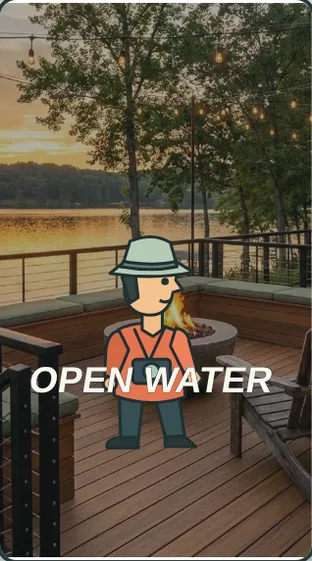
IN EVERYDAY WORDS
Start at “Outside caption”. The caption moves from the bottom margin into the camera frame and takes on the perspective of the room.
The look
The caption moves from the bottom margin into the camera frame and takes on the perspective of the room.
Say this to a designer
On my property story, use “Land the caption inside the photo”. The caption moves from the bottom margin into the camera frame and takes on the perspective of the room.
Direct the motion
These are starting points, not fixed rules. Match the timing to the content and the person using it.
- trigger
- Scrub “Land the caption inside the photo”, replay, or advance with native scrolling.
- entrance
- Establish “Outside caption” so the viewer can recognize the starting state.
- path
- The caption moves from the bottom margin into the camera frame and takes on the perspective of the room.
- timing
- The complete replay takes 3.6 seconds. Keep each cue tied to its position in the sequence.
- easing
- Seek directly to the requested frame. Ease the movement between the authored poses.
- hold
- Settle on “Caption in scene” so the viewer can inspect the consequence.
- exit
- Carry the discovery source, original question and chosen references into the next scene.
The vocabulary
- Land the caption inside the photo
- The caption moves from the bottom margin into the camera frame and takes on the perspective of the room.
Make it fit your project
Good places to use it: property story, Kinetic caption workshop.
Use this when the viewer needs to follow the change from “Outside caption” to “Caption in scene”.
Watch for: Keep the subject, orientation and interface legible throughout the change.
When motion is off: Choose “Outside caption” or “Caption in scene” to inspect either still. Keep the full description available with motion off.
Implementation and accessibility
- Establish “Outside caption” using an owned photograph or an illustrative interface.
- The caption moves from the bottom margin into the camera frame and takes on the perspective of the room.
- Return to “Caption in scene” using the end control and verify the result at phone size.
- Expose both named endpoints and a keyboard-operated control.
- Give spoken cues a readable visual equivalent.
- Load the active artwork on demand and share its frame calculation between scroll and replay.
Give it to your AI
Download the working source and example assets. Match this reference number in the included catalog to its renderer.
Replace [ELEMENT] with the part of your project you want to change. The prompt includes the design brief, motion direction, definitions, and implementation steps.
Read the full prompt
Use AI Acceleration Design Ref #740 (Land the caption inside the photo, version 1) on [ELEMENT] in my existing project.

Permanent reference: https://aiacceleration.ai/designrefs/740. This local brief contains the full definition. Inspect my existing stack, component, design tokens and interaction before editing.

Goal: The caption moves from the bottom margin into the camera frame and takes on the perspective of the room.

DESIGN REF #740 · Land the caption inside the photo

In everyday words: Start at “Outside caption”. The caption moves from the bottom margin into the camera frame and takes on the perspective of the room.

The look: The caption moves from the bottom margin into the camera frame and takes on the perspective of the room.

Say this to a designer:
On my property story, use “Land the caption inside the photo”. The caption moves from the bottom margin into the camera frame and takes on the perspective of the room.

Motion direction (starting points to adapt):
Trigger: Scrub “Land the caption inside the photo”, replay, or advance with native scrolling.
Entrance: Establish “Outside caption” so the viewer can recognize the starting state.
Path: The caption moves from the bottom margin into the camera frame and takes on the perspective of the room.
Timing: The complete replay takes 3.6 seconds. Keep each cue tied to its position in the sequence.
Easing: Seek directly to the requested frame. Ease the movement between the authored poses.
Hold: Settle on “Caption in scene” so the viewer can inspect the consequence.
Exit: Carry the discovery source, original question and chosen references into the next scene.

Design vocabulary:
Land the caption inside the photo: The caption moves from the bottom margin into the camera frame and takes on the perspective of the room.

Reduced motion: Choose “Outside caption” or “Caption in scene” to inspect either still. Keep the full description available with motion off.

Implement:
1. Establish “Outside caption” using an owned photograph or an illustrative interface.
2. The caption moves from the bottom margin into the camera frame and takes on the perspective of the room.
3. Return to “Caption in scene” using the end control and verify the result at phone size.

Adapt the reference to my branding and content. Preserve existing functionality and semantic HTML.
Reduced motion: Choose “Outside caption” or “Caption in scene” to inspect either still. Keep the full description available with motion off.
Accessibility: Expose both named endpoints and a keyboard-operated control. Give spoken cues a readable visual equivalent.
Performance: Load the active artwork on demand and share its frame calculation between scroll and replay.
Avoid: Keep the subject, orientation and interface legible throughout the change.

Show me the working result, verify keyboard, mobile, loading/error and reduced-motion behavior, and explain any tradeoff. Do not publish or change unrelated elements.
Permanent reference #740 · version 1. Pairs with #323, #003.