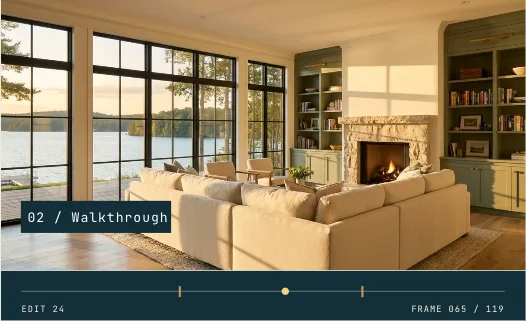
A visibly marked three-part timeline ties each chapter to its opening frame and its corresponding picture.
IN EVERYDAY WORDS
Read the chapter track. Compare the two ends of the control, then replay the change.
The look
A visibly marked three-part timeline ties each chapter to its opening frame and its corresponding picture.
Say this to a designer
Apply “Seek the chapter markers” to my property film edit. A visibly marked three-part timeline ties each chapter to its opening frame and its corresponding picture.
Direct the motion
These are starting points, not fixed rules. Match the timing to the content and the person using it.
trigger
Scroll through the study or adjust “Read the chapter track” directly.
entrance
Begin with the identifiable state “Arrival”.
path
A visibly marked three-part timeline ties each chapter to its opening frame and its corresponding picture.
timing
Scrub to inspect the change, then use replay to see the sequence in time.
easing
Match the illustrated motion. Keep manual seeking directly coupled to the control.
hold
Hold the resolved state “Close-up” long enough to inspect its defining detail.
exit
Carry the subject into the next exhibit and keep the saved project selection.
The vocabulary
Frame timing
The frame number fixes what the viewer sees at a particular point in the edit.
Make it fit your project
Good places to use it: property film edit.
Use this reference to recreate the change from “Arrival” to “Close-up”.
Watch for: Keep the primary subject and its original meaning recognizable throughout the change.
When motion is off: Select “Arrival” or “Close-up” to inspect a still state. The same control works from the keyboard.
Implementation and accessibility
Use “Read the chapter track” to move from “Arrival” to “Close-up”.
A visibly marked three-part timeline ties each chapter to its opening frame and its corresponding picture.
Check the beginning, midpoint and end at phone size. Replay the result and reverse the control.
Give the control a persistent name. Provide both endpoint descriptions and a keyboard equivalent.
Mount the active study on demand and release it after the visitor leaves.
Replace [ELEMENT] with the part of your project you want to change. The prompt includes the design brief, motion direction, definitions, and implementation steps.
Read the full prompt
Use AI Acceleration Design Ref #493 (Seek the chapter markers, version 1) on [ELEMENT] in my existing project.

Permanent reference: https://aiacceleration.ai/designrefs/493. This local brief contains the full definition. Inspect my existing stack, component, design tokens and interaction before editing.

Goal: A visibly marked three-part timeline ties each chapter to its opening frame and its corresponding picture.

DESIGN REF #493 · Seek the chapter markers

In everyday words: Read the chapter track. Compare the two ends of the control, then replay the change.

The look: A visibly marked three-part timeline ties each chapter to its opening frame and its corresponding picture.

Say this to a designer:
Apply “Seek the chapter markers” to my property film edit. A visibly marked three-part timeline ties each chapter to its opening frame and its corresponding picture.

Motion direction (starting points to adapt):
Trigger: Scroll through the study or adjust “Read the chapter track” directly.
Entrance: Begin with the identifiable state “Arrival”.
Path: A visibly marked three-part timeline ties each chapter to its opening frame and its corresponding picture.
Timing: Scrub to inspect the change, then use replay to see the sequence in time.
Easing: Match the illustrated motion. Keep manual seeking directly coupled to the control.
Hold: Hold the resolved state “Close-up” long enough to inspect its defining detail.
Exit: Carry the subject into the next exhibit and keep the saved project selection.

Design vocabulary:
Frame timing: The frame number fixes what the viewer sees at a particular point in the edit.

Reduced motion: Select “Arrival” or “Close-up” to inspect a still state. The same control works from the keyboard.

Implement:
1. Use “Read the chapter track” to move from “Arrival” to “Close-up”.
2. A visibly marked three-part timeline ties each chapter to its opening frame and its corresponding picture.
3. Check the beginning, midpoint and end at phone size. Replay the result and reverse the control.

Adapt the reference to my branding and content. Preserve existing functionality and semantic HTML.
Reduced motion: Select “Arrival” or “Close-up” to inspect a still state. The same control works from the keyboard.
Accessibility: Give the control a persistent name. Provide both endpoint descriptions and a keyboard equivalent.
Performance: Mount the active study on demand and release it after the visitor leaves.
Avoid: Keep the primary subject and its original meaning recognizable throughout the change.

Show me the working result, verify keyboard, mobile, loading/error and reduced-motion behavior, and explain any tradeoff. Do not publish or change unrelated elements.
Permanent reference #493 · version 1. Pairs with #004, #006.